 First Fix
How it works, one tap at a time
Four short guides. Each one shows the screen you'll see and where to tap. The yellow ring on a picture means "tap here".
Get set up
You do this once. Have your phone and your email to hand.
-
Open the app
This is the first thing you see. Tap the yellow button, Continue with email.
No passwords here. I can't remember them either.
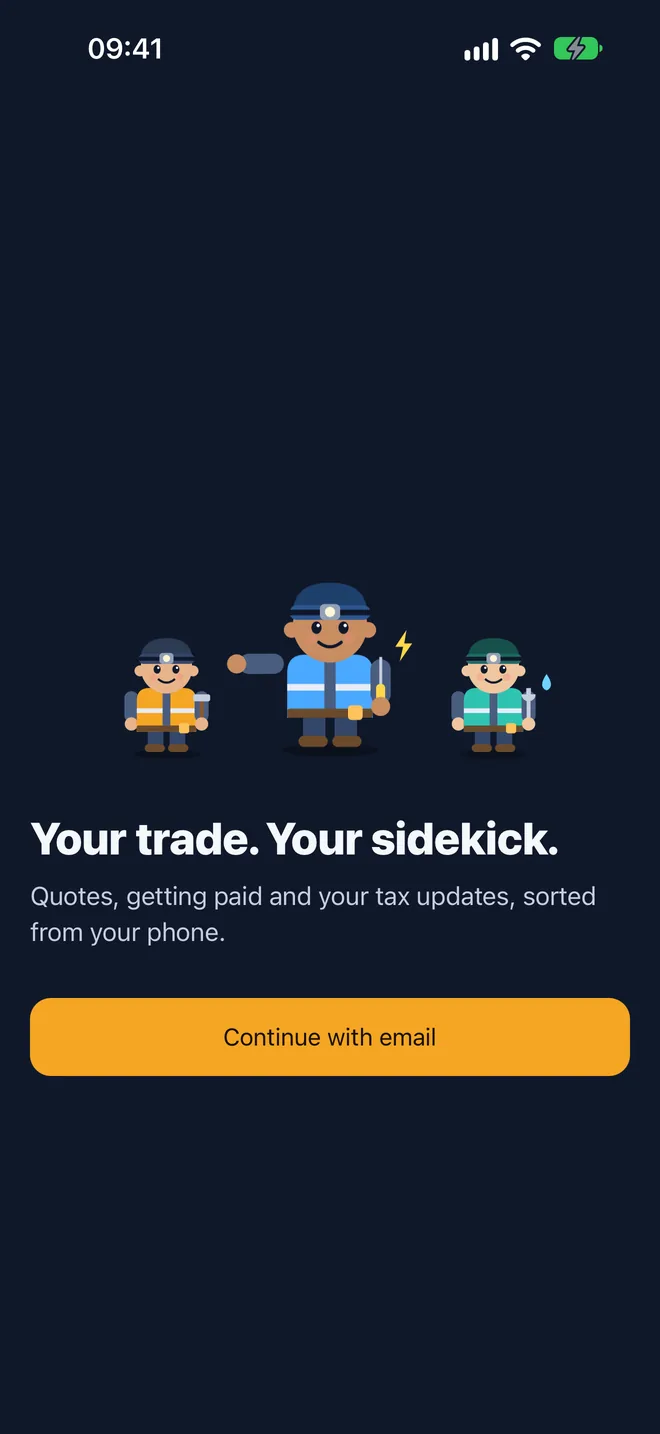 Tap here
-
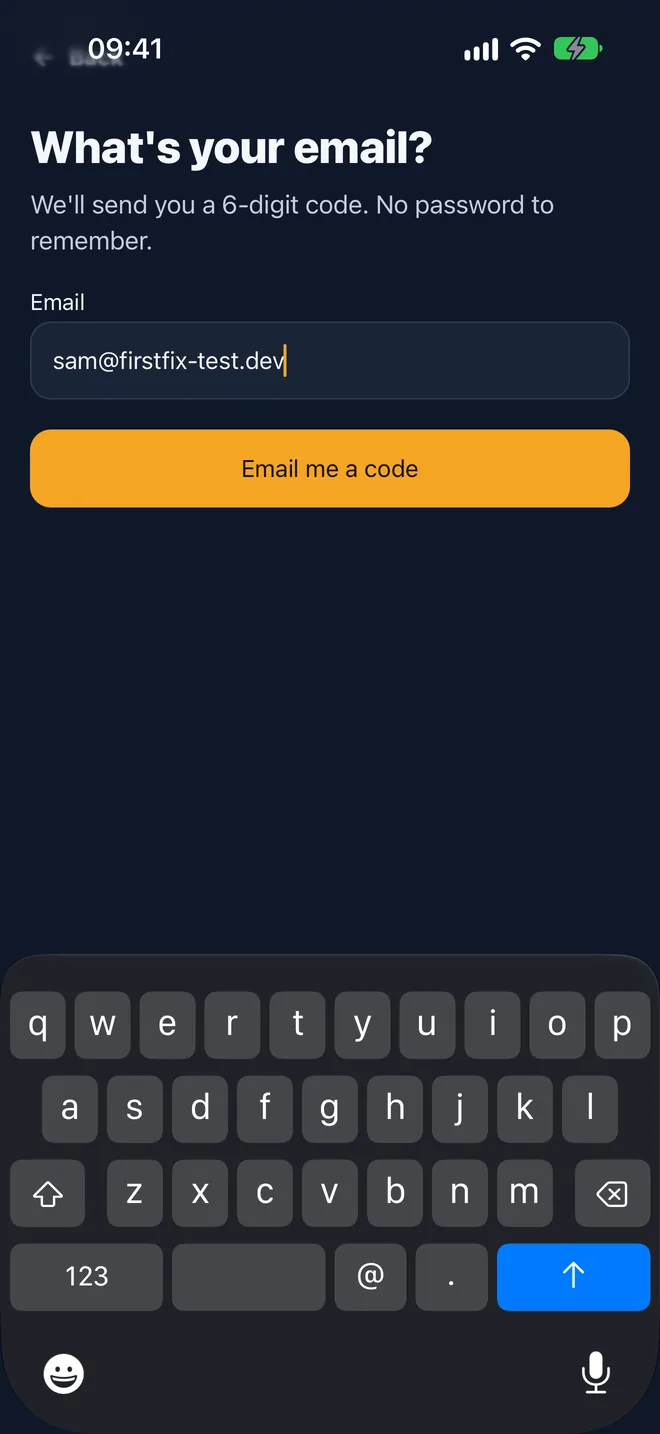
Type your email address
Type it in, then tap Email me a code.
Use the email you check on your phone. That's where the code goes.
-
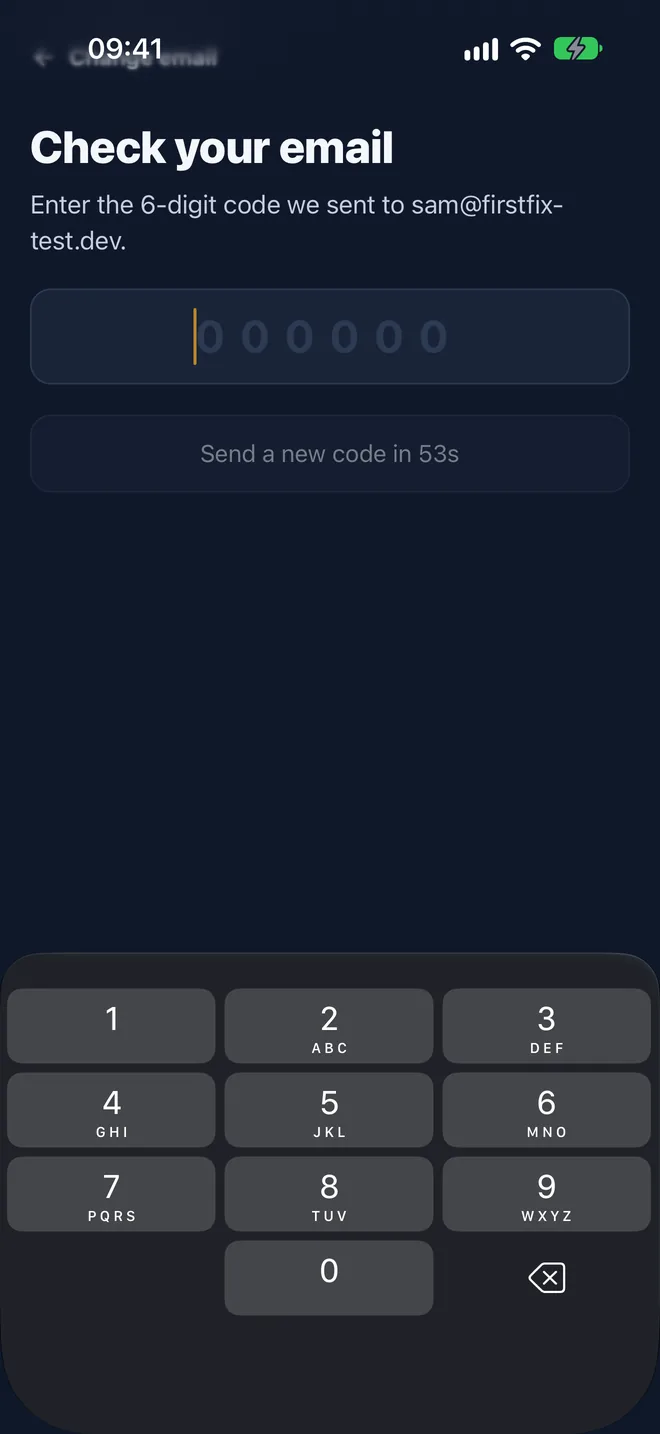
Type the 6-digit code
We email you a code straight away. Type the six numbers into the box. That's you signed in.
No email? Wait a minute, then tap Send a new code.
Your phone might offer the code just above the keyboard. Tap it and it fills itself in.
-
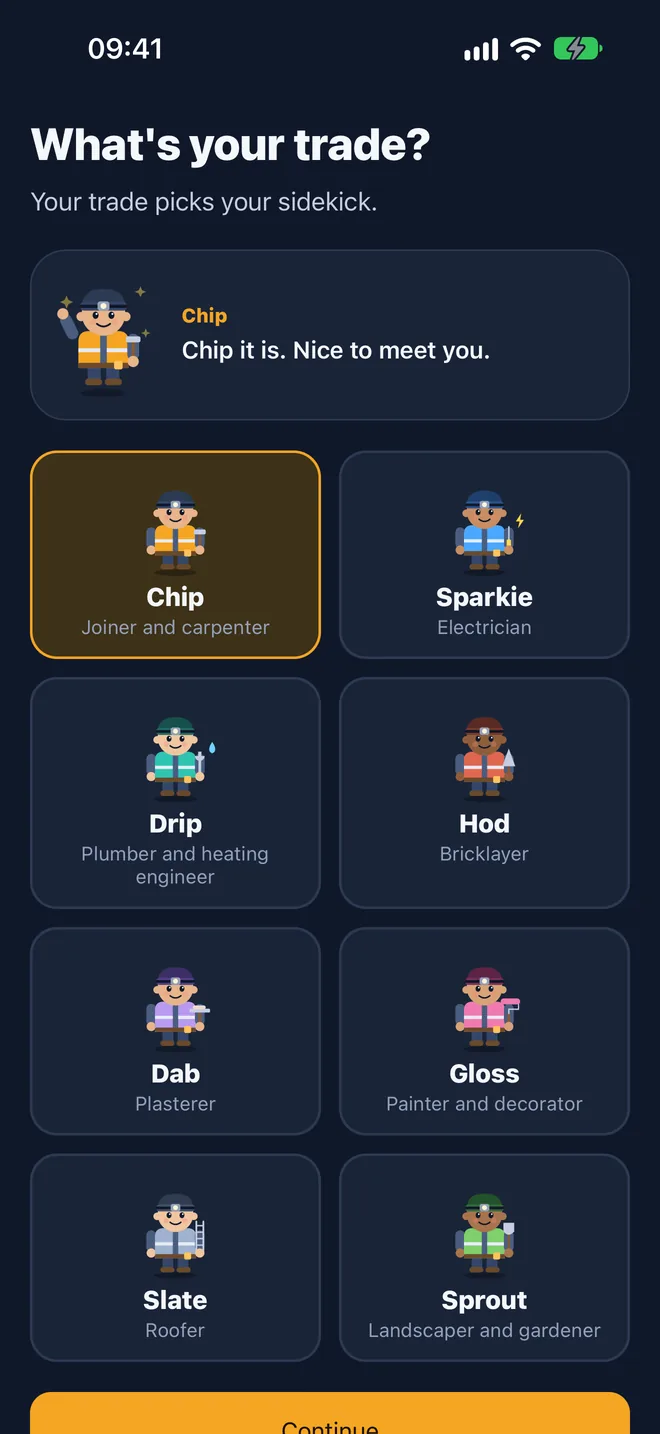
Pick your trade
Tap the trade that fits you best. Each one comes with its own sidekick. Then tap Continue.
Pick joiner and you get me. The others are sound too.
-
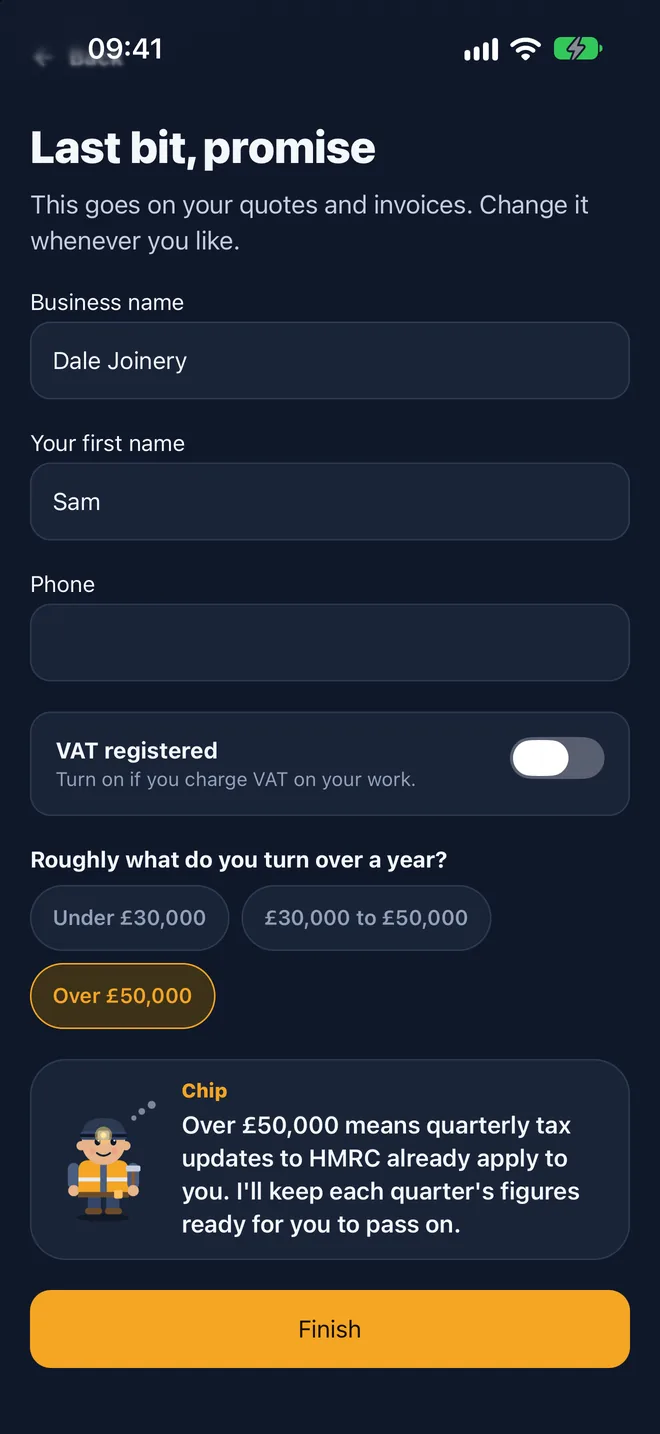
Tell it about your business
Your business name, your first name and roughly what you turn over in a year. The name goes on your quotes. Then tap Finish.
A rough turnover is fine. It only tells me when the tax updates start for you.
 Tap here
-
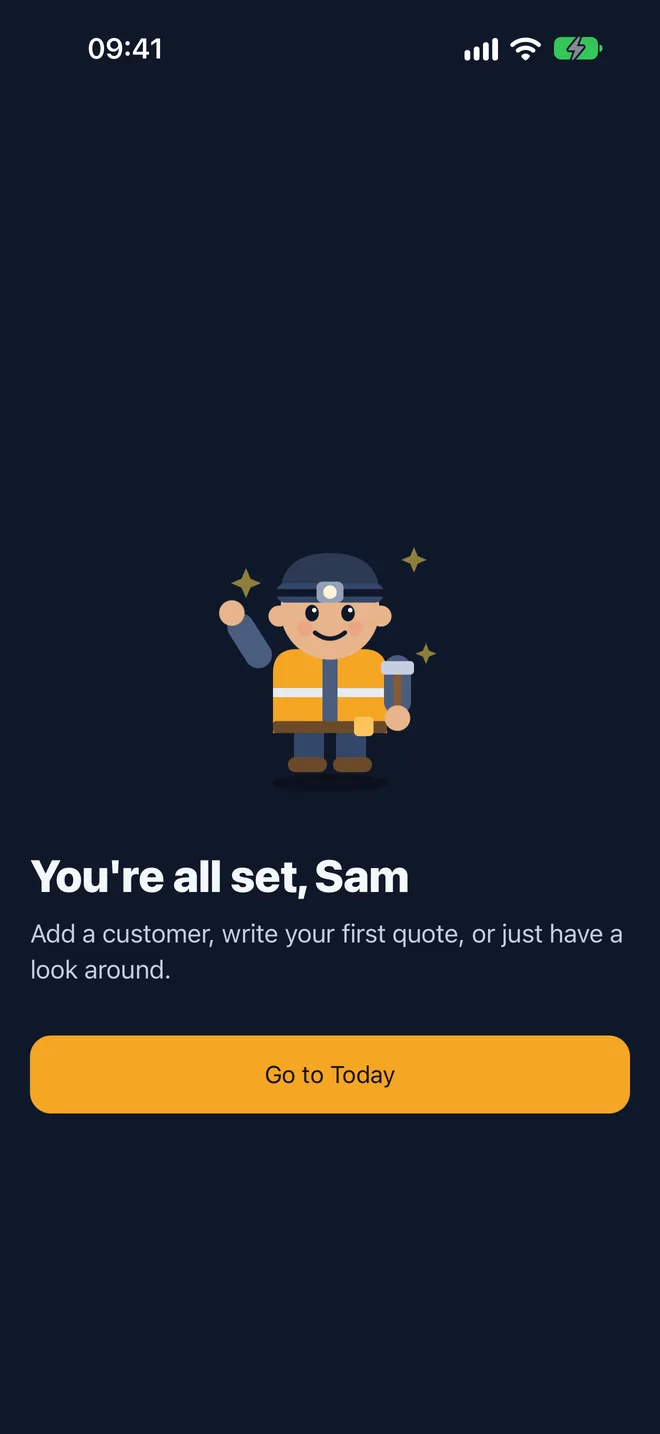
You're in
That's set-up finished. Tap Go to Today to see your home screen.
That's the fiddly bit done. You won't see those screens again.
Send a quote
Do it on the customer's drive, while the job is fresh in your head.
-
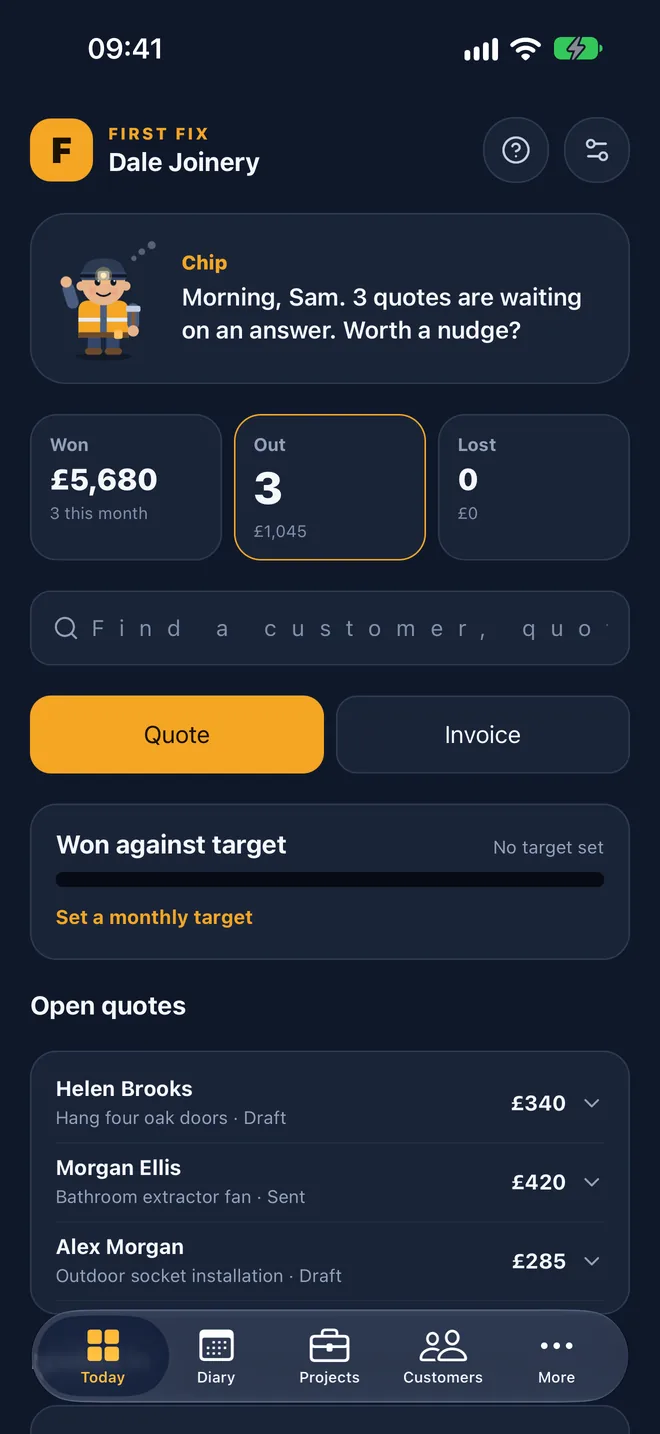
Start on Today
Today is the screen the app opens on. Tap the yellow Quote button.
Today is home. Whenever you're lost, tap Today at the bottom left.
 Tap here
-
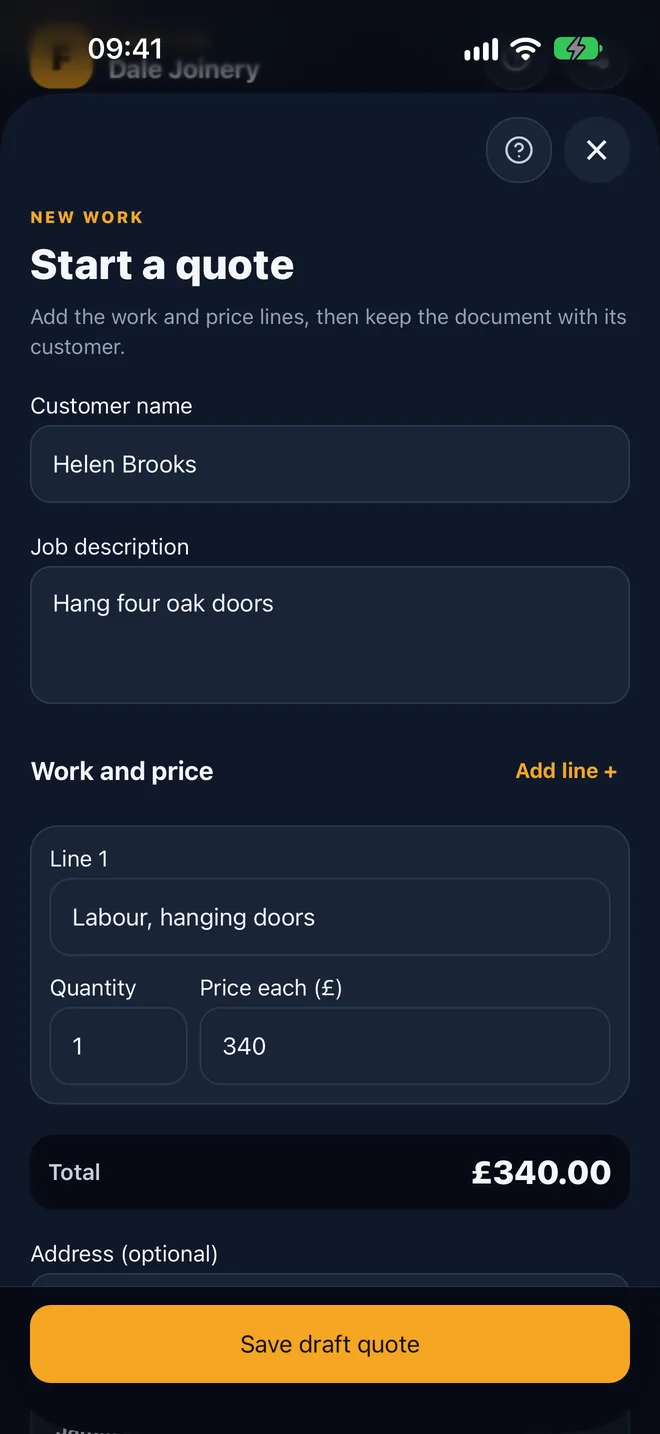
Who is it for, and what's the job?
Type the customer's name and a line about the work. "Hang four oak doors" is plenty.
Write the job the way you'd say it to the customer.
-
Put in the price
Type what the line is for, how many, and the price for each. The total adds itself up as you go. Then tap Save draft quote.
I do the adding up. Need labour and materials separate? Tap Add line.
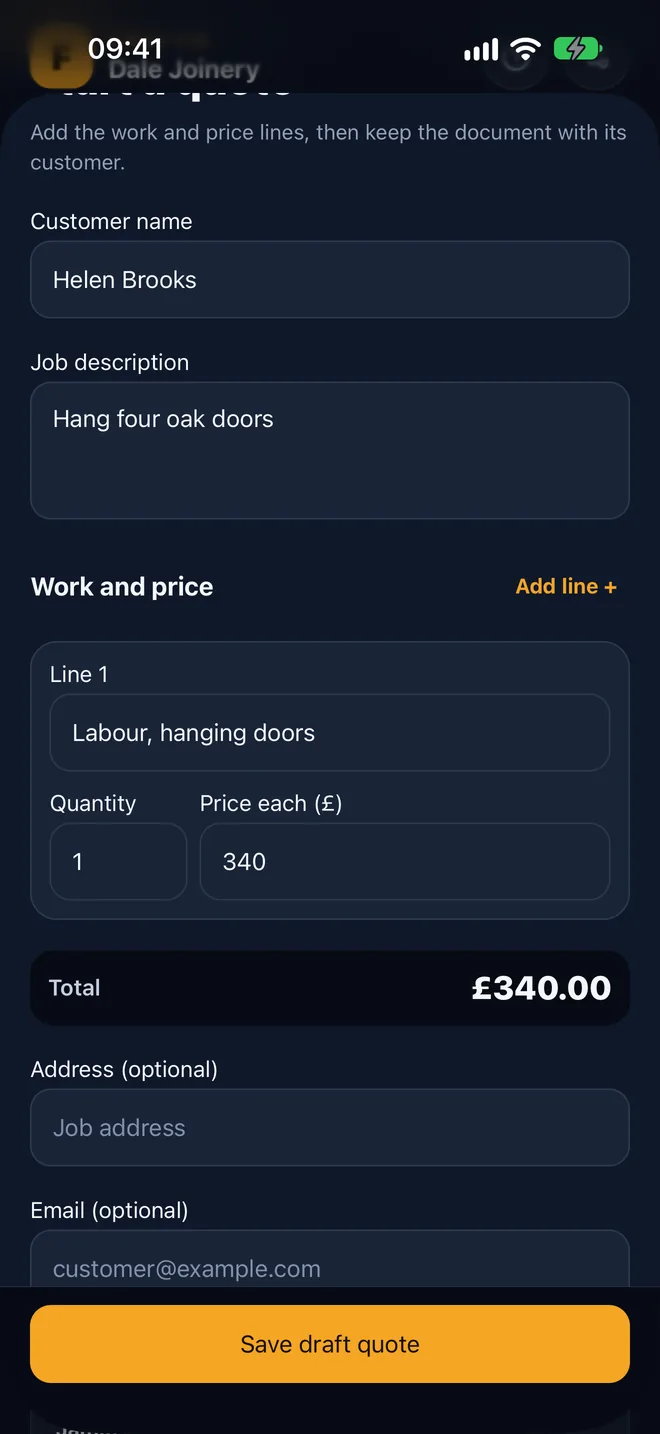 Tap here
-
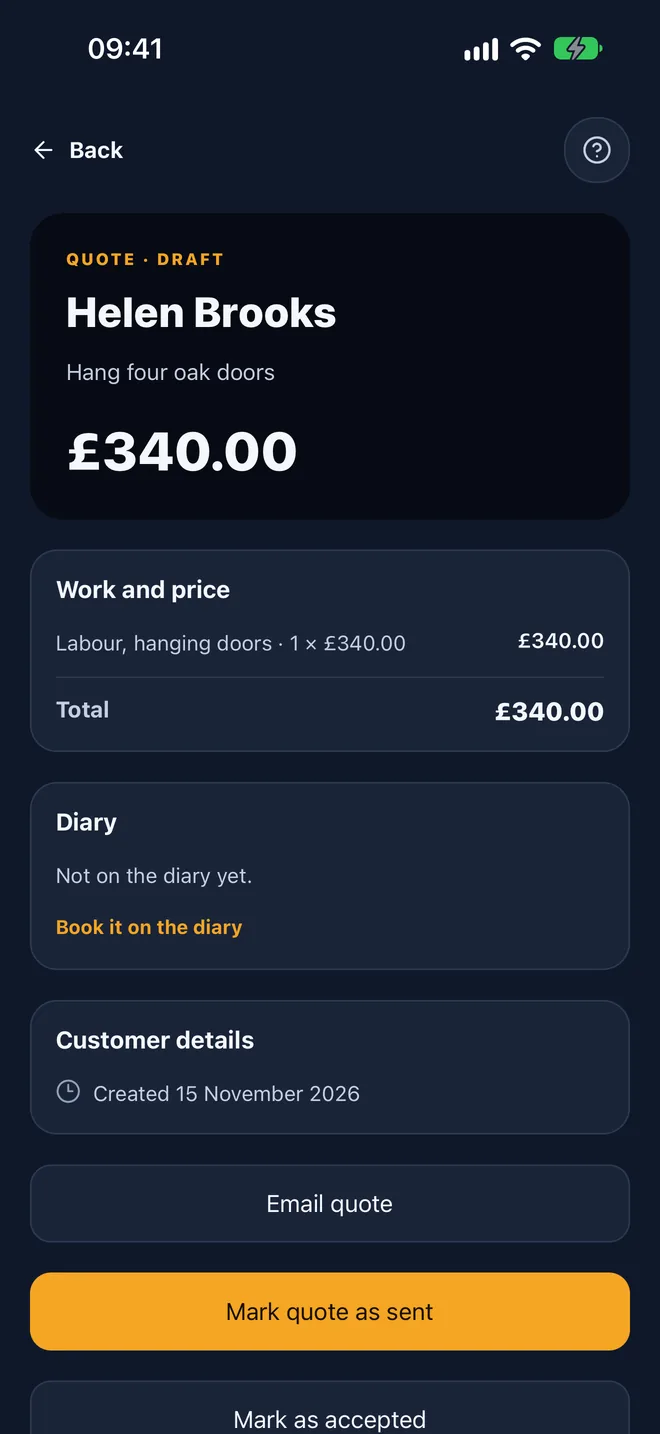
Check it over
Your quote is saved and has its own screen. Have a look. Nothing has gone to the customer yet.
Saving doesn't send anything. Nothing goes to the customer until you say so.
-
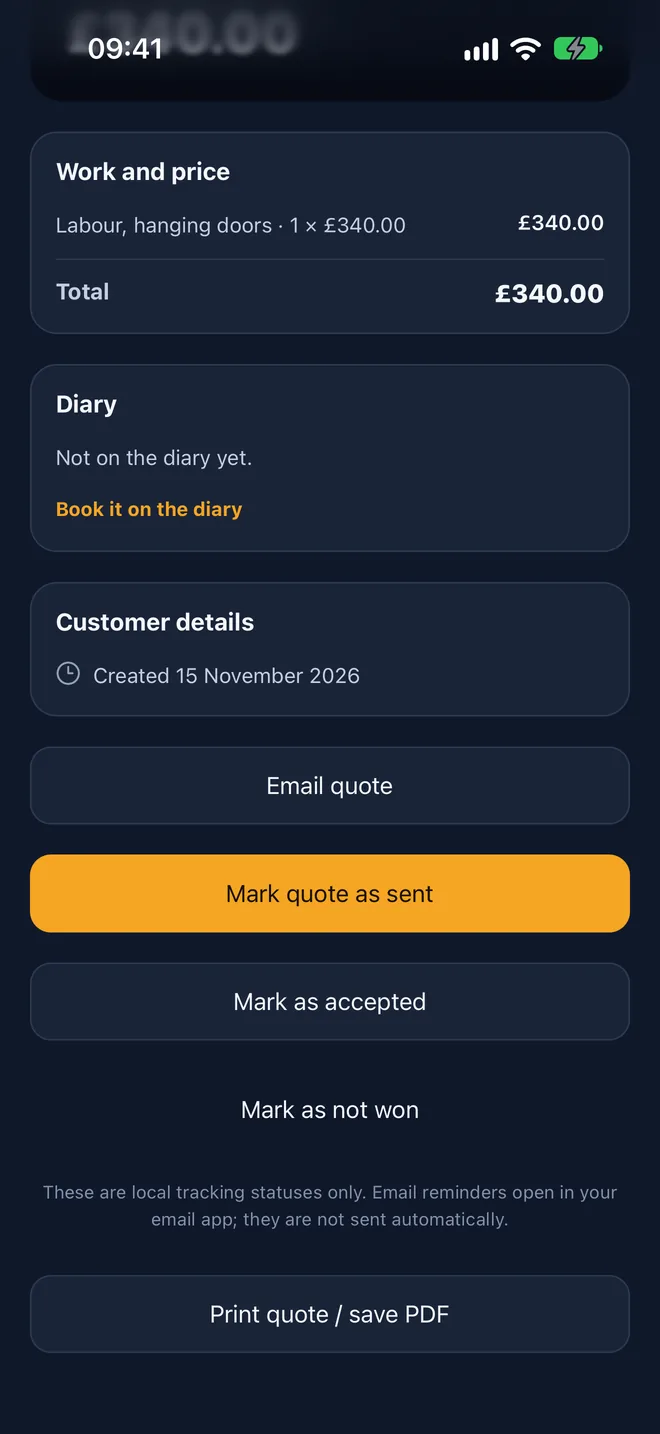
Send it
Tap Email quote to send it to the customer. When they say yes, come back and tap Mark as accepted.
When they say yes, mark it as accepted and it counts towards your month.
Record a cost
Anything the business pays for: materials, fuel, tools, insurance.
-
Tap More, then Costs
More is at the bottom right of every main screen. Costs is first in the list.
More is the three dots, bottom right. Everything that isn't on Today lives there.
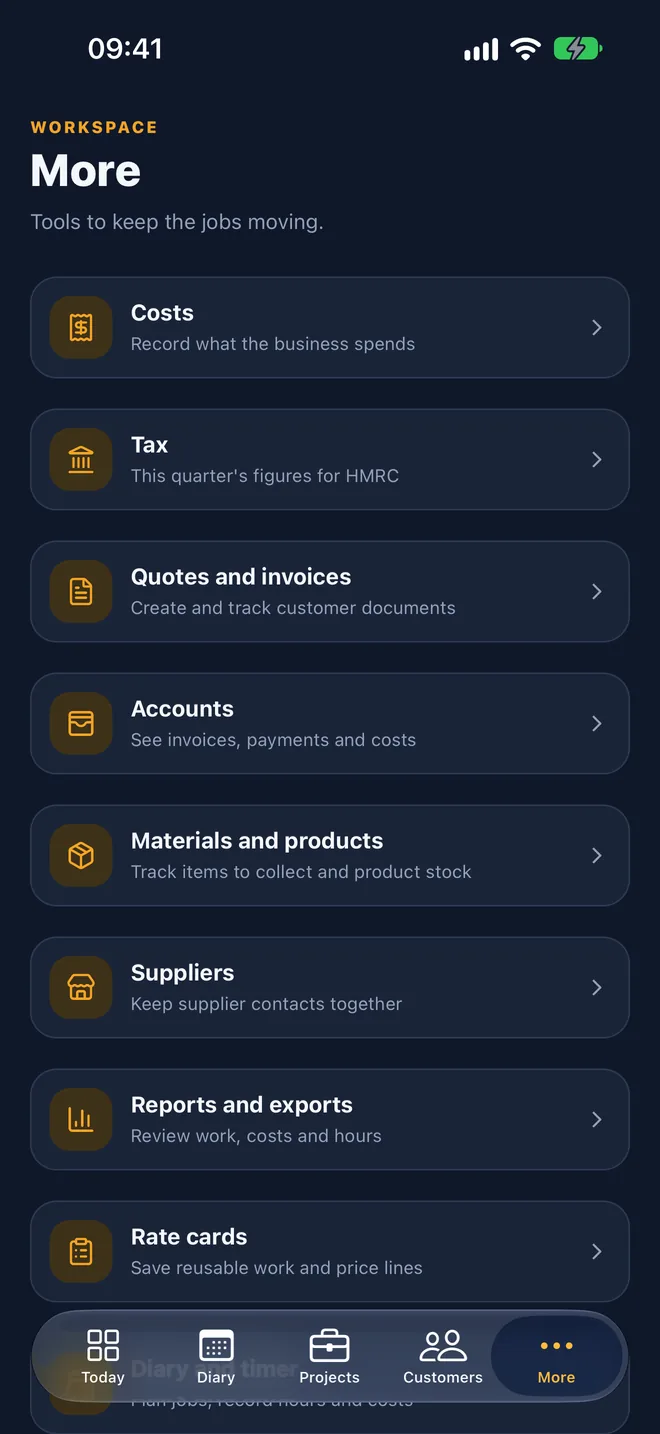 Tap here
-
Put in what you spent
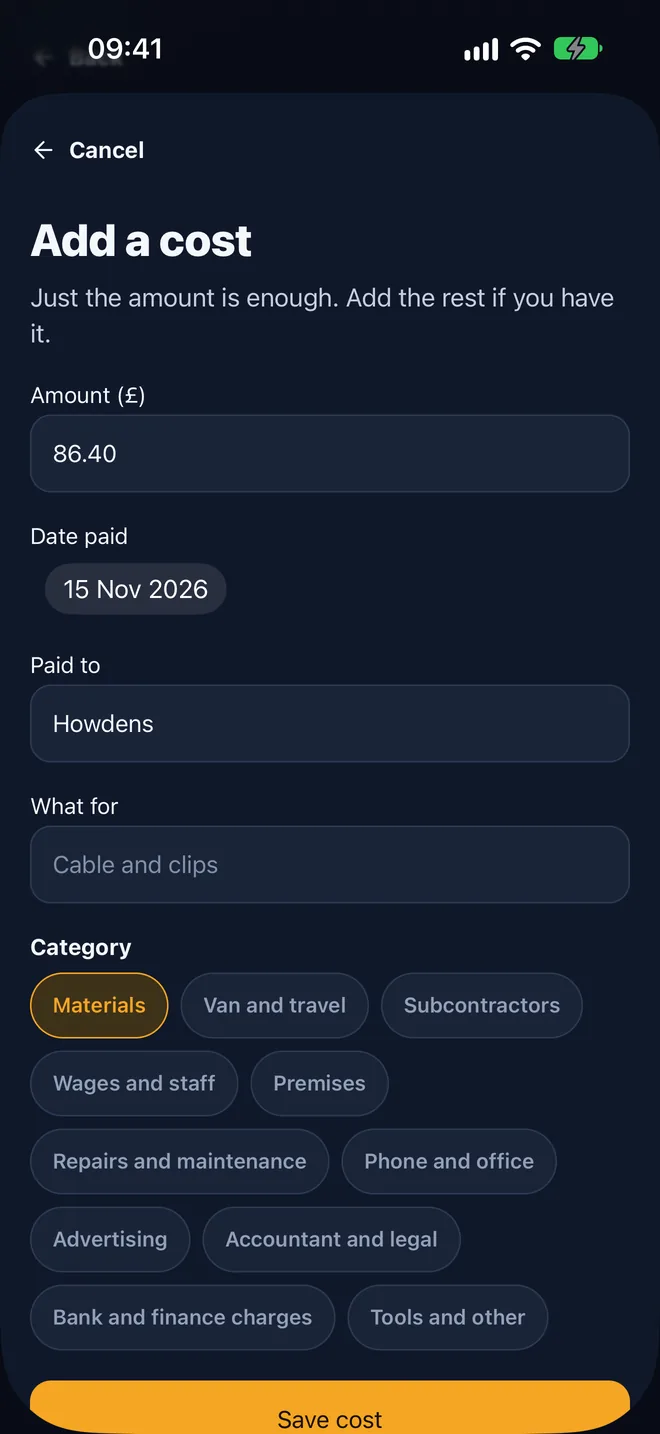
Tap Add a cost. Type the amount, who you paid, and pick what it was for. Then tap Save cost.
Just the amount is enough. Add the rest if you've got ten seconds.
-
It's on your list
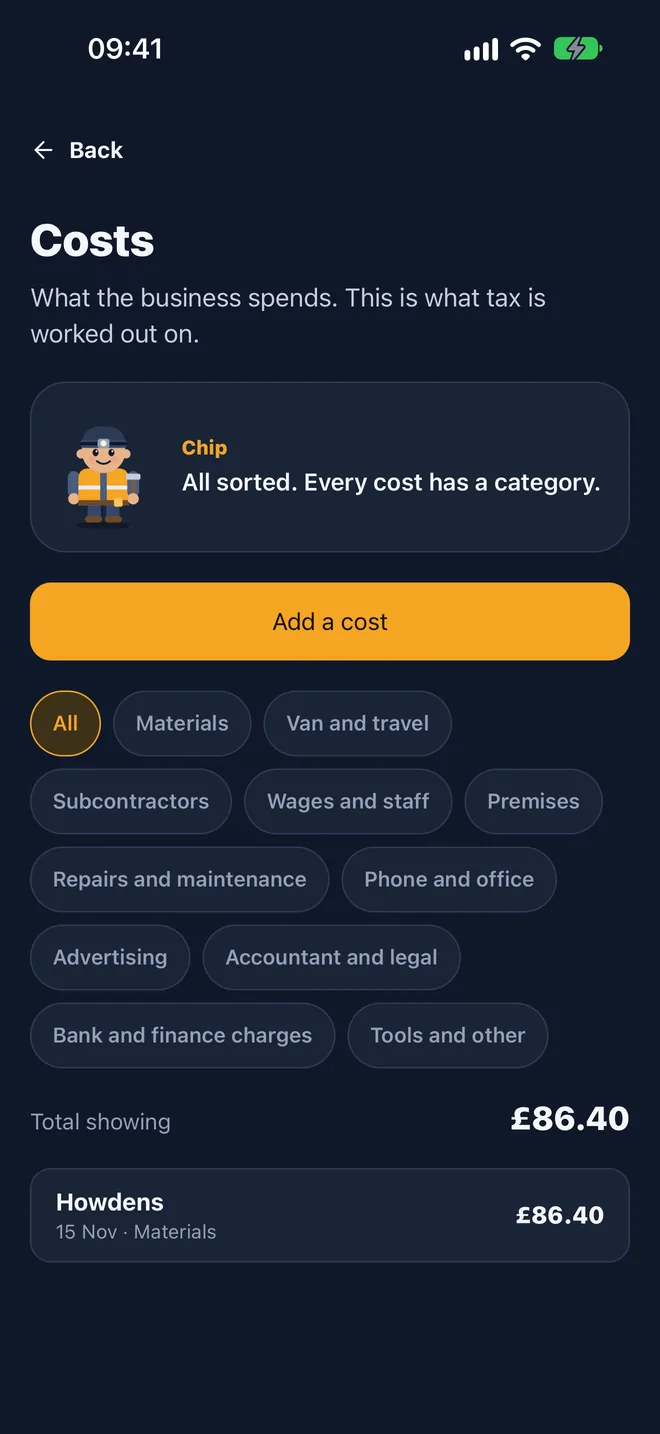
The cost shows in your list with a running total. Tap the buttons along the top to see one kind of cost at a time.
Every cost you put in here is already counted in your tax figures.
Check your tax
The tax year is split into four lots of three months. HMRC calls each one a quarter.
-
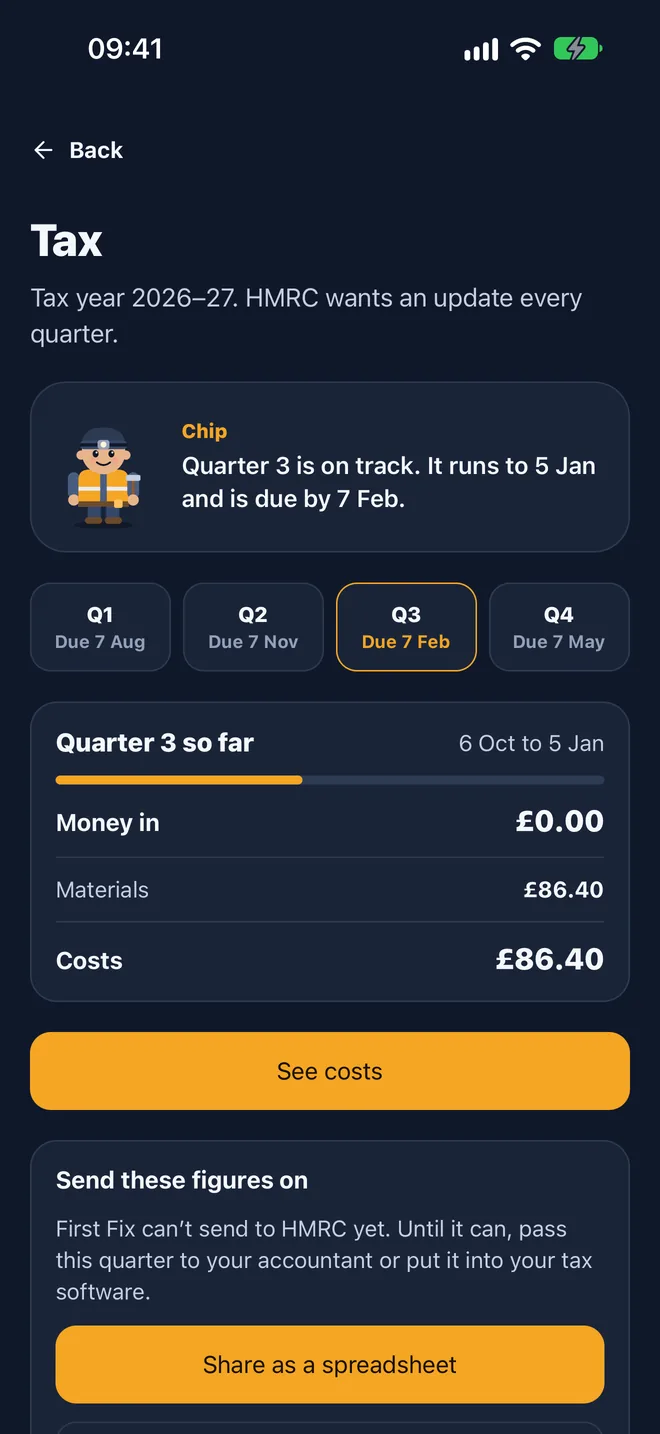
Tap More, then Tax
You'll see the four quarters with the date each is due. The one you're in is marked. Underneath is money in and what you've spent so far.
You never fill this in. It builds itself from your quotes and your costs.
-
Send the figures on
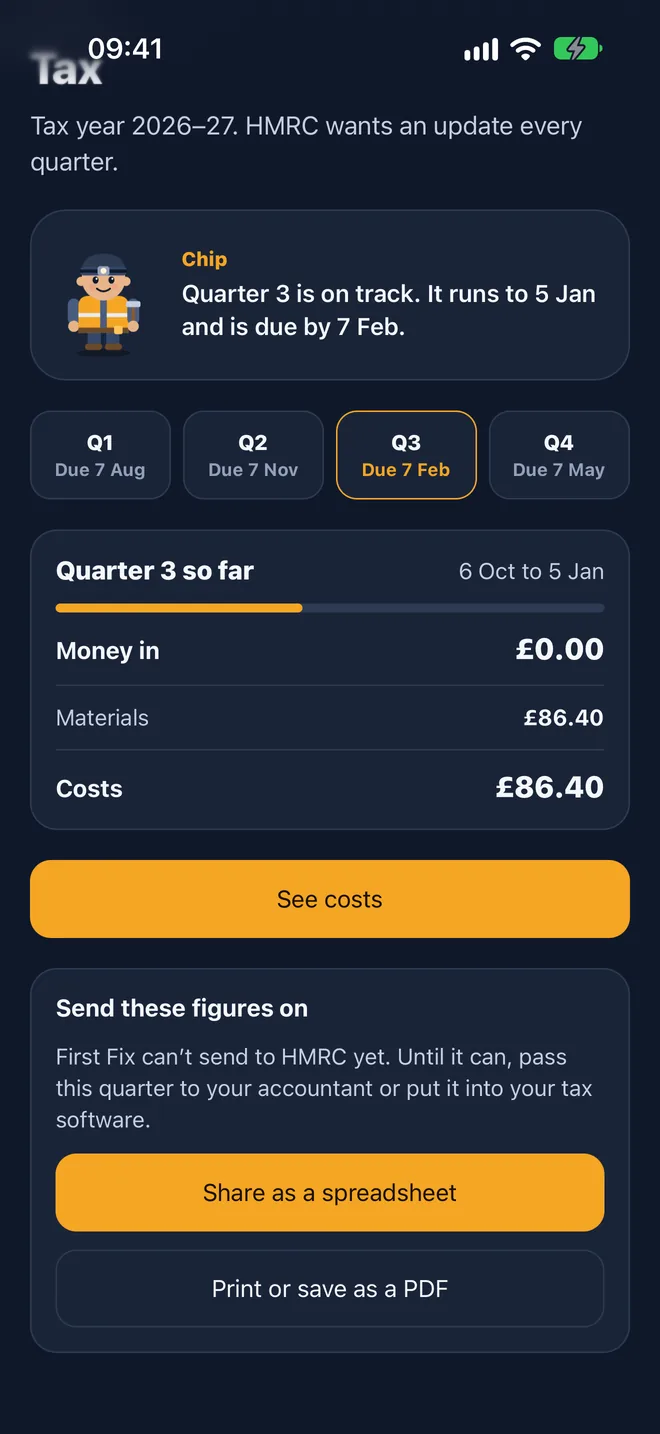
Scroll down and tap Share as a spreadsheet to email the quarter to your accountant. Or tap Print or save as a PDF for a one-page summary.
I can't send to HMRC myself yet. Your accountant can, and this is what they'll ask for.
 Tap here